SingleTone › HEIC photo editor
Edit iPhone HEIC photos in your browser
iPhone photos are HEIC files, which many browsers and editors cannot open. SingleTone opens them directly in any current browser and keeps their wide Display P3 colour when you export, with nothing to convert first and nothing uploaded.
Open your HEIC photosFree · no sign-up · nothing uploaded
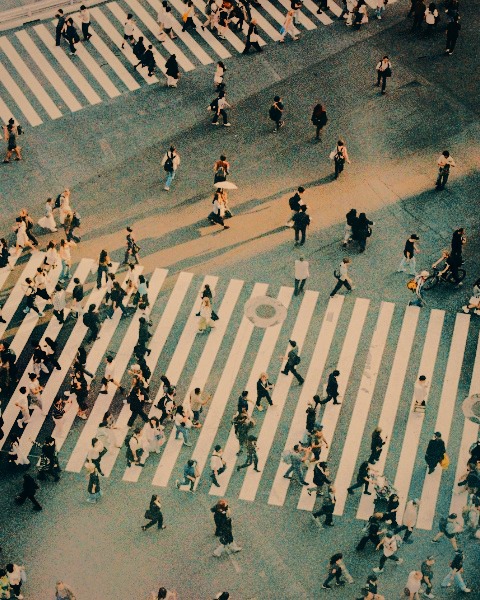
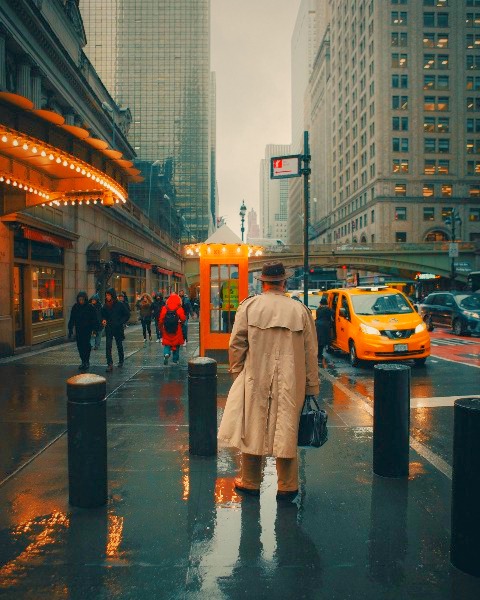
As shot





Edited



How to edit HEIC photos
- Drop your HEIC photos into SingleTone, or send them straight from your iPhone by scanning a QR code.
- Fix lighting, match the set and choose a look, for all the photos or one.
- Export as full-resolution JPEG or PNG, with the colour kept.
What is kept
Display P3 colour
The wider colour of iPhone photos is kept in the export, not squeezed into sRGB.
Camera info
EXIF, such as the date and the camera, stays in the exported photo.
HDR
Ultra HDR JPEGs keep their HDR. HDR in iPhone HEIC files is exported as standard range (SDR).
iPhone video
HEVC video opens in Safari, and in Chrome or Edge on a recent Mac or PC.
Questions
Do I have to convert HEIC to JPG first?
No. SingleTone opens HEIC itself, in Safari, Chrome, Edge or Firefox.
What do I get when I export?
A full-resolution JPEG or PNG with Display P3 colour and EXIF kept, ready to post or print.
Are my photos uploaded?
No. Everything happens in your browser, on your device: the photos are edited and exported where they are, and SingleTone never receives them. HEIC is decoded in the browser too.
Is it free?
Yes. It is free, with no sign-up and no watermark on what you export.
Free · no sign-up · nothing uploaded
Open your HEIC photos